GigaCAD is version control for CAD files. It works like the tools software teams use, with branches, reviews and releases, but each step is built for parts and assemblies, which can’t be merged.
This walkthrough uses a real open-source design, the SO-ARM100 robot arm by TheRobotStudio, and an example team of four. They released the original arm as v1, redesigned it into the SO-101 on a branch, and released that as v2.
Releases can’t change
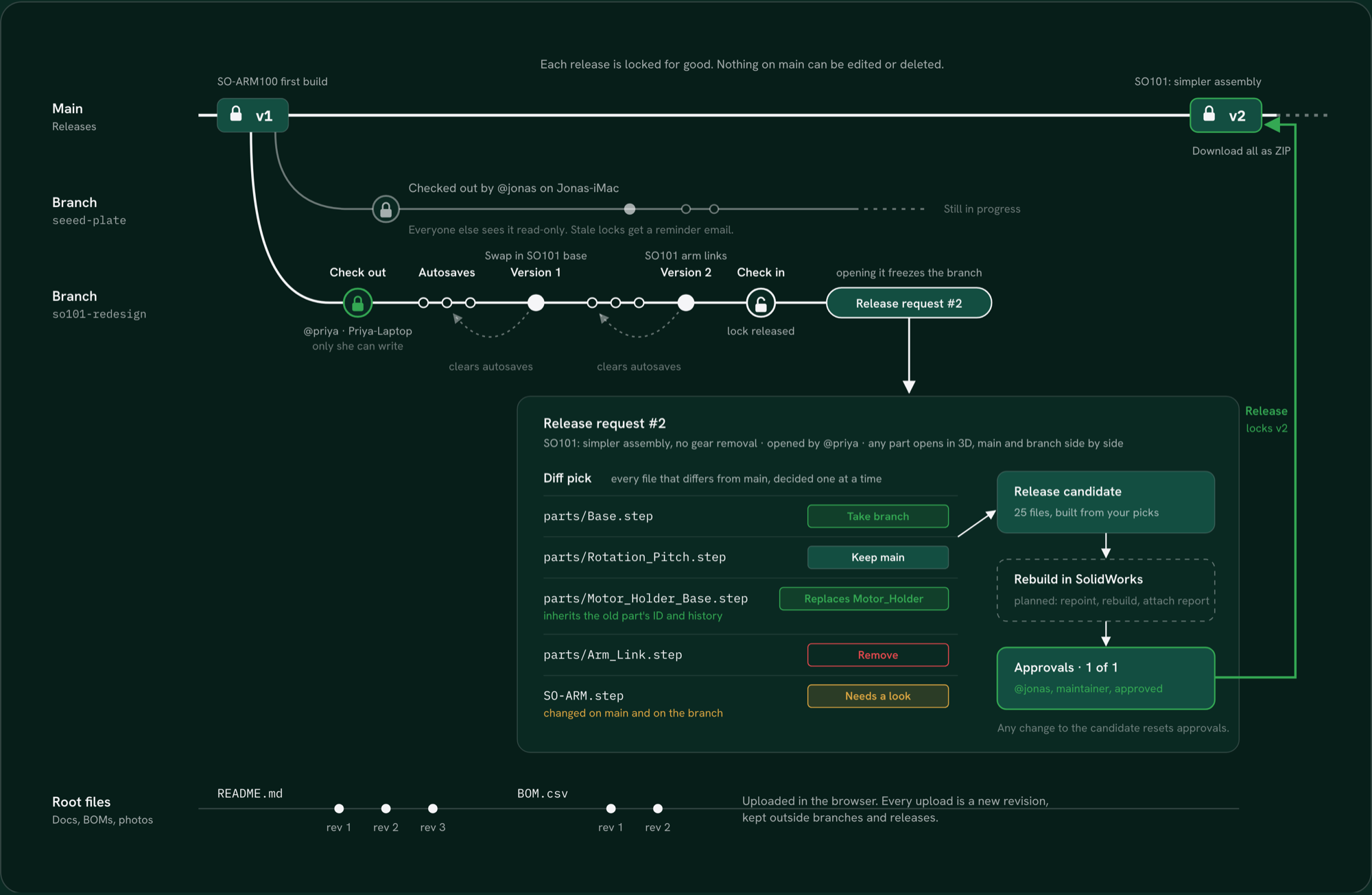
A project has one line of releases: v1, v2, v3. Once a release exists, nobody can edit or delete it, including the owner. You can always see exactly which files made up any release, and Download all gets them as a ZIP.
One person per branch
Work happens on branches, and each branch starts from a release. To edit a branch, you check it out. While Priya has so101-redesign checked out on her laptop, only she can save to it. Everyone else can open it, read-only.
If someone forgets to check in, GigaCAD emails them a reminder. Owners and maintainers can release the lock, and the person who held it is told.
Autosaves and Versions
Every save is kept as an autosave, so a crash costs you minutes, not days. When you reach a point worth keeping, save a Version with a name, such as “Swap in the SO101 base”. Versions are permanent. Saving one deletes the autosaves before it.
Release requests
When a branch is ready, open a release request. The branch freezes, so it can’t change while people review it.
GigaCAD lists every file that differs from the latest release, and you choose what happens to each one:
| Pick | Result |
|---|---|
| Take branch | The branch’s file goes into the release |
| Keep main | The release keeps the current file |
| Replace a main part | The branch file takes over an existing part’s history |
| Remove | The file isn’t in the next release. Older releases keep it |
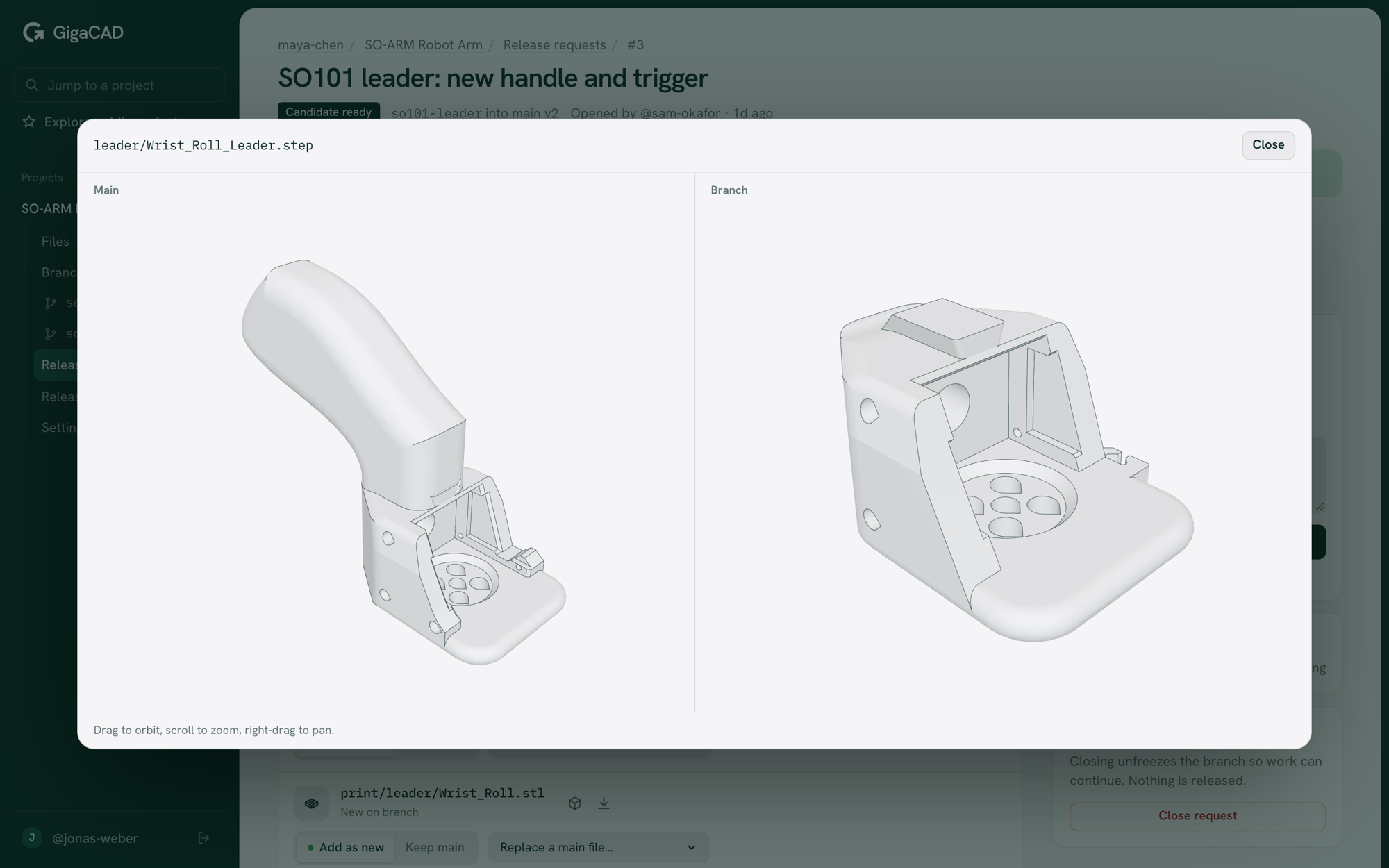
If a file changed on both the branch and main since the branch started, GigaCAD flags it. You can open any part in 3D in the browser and compare the two versions side by side.
Parts keep their history
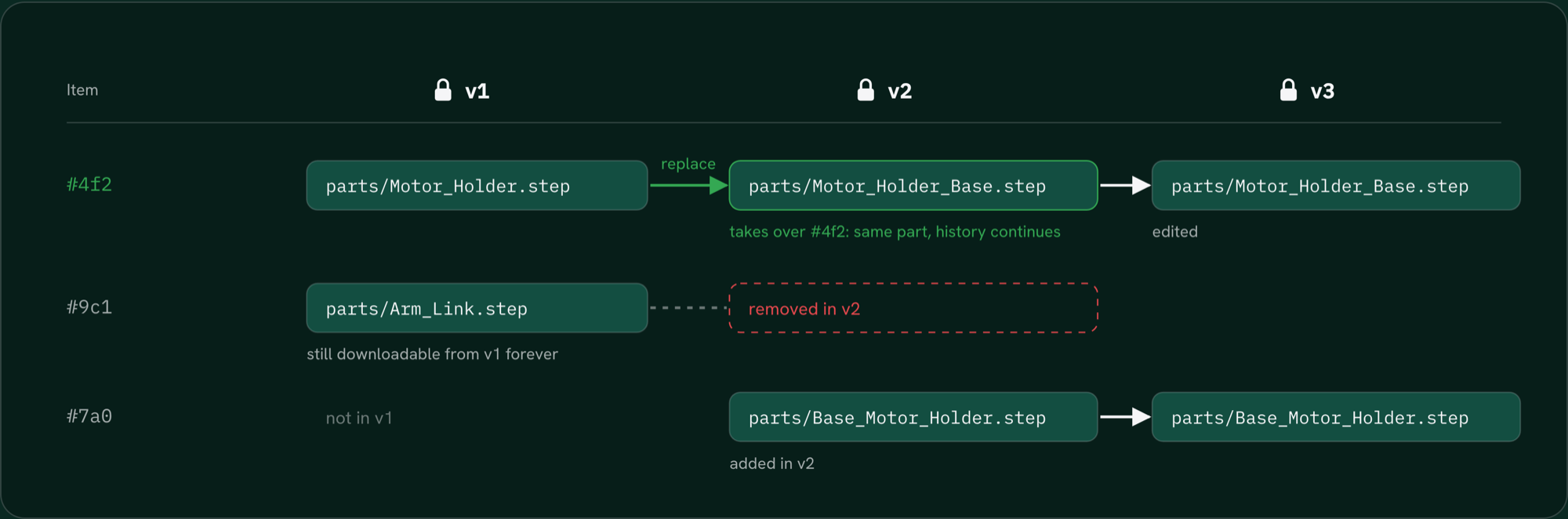
In the SO-101 redesign, Motor_Holder.step was replaced by Motor_Holder_Base.step. With a replace pick, the new file takes over the old part’s history, which now runs back to v1.
Approvals
Each project sets its own approval rules: who can approve, by person or by role; how many approvals a release needs; and whether people can approve their own requests. The SO-ARM project needs one maintainer’s approval, and nobody can approve their own request. If anyone changes the picks after an approval, the approvals reset.
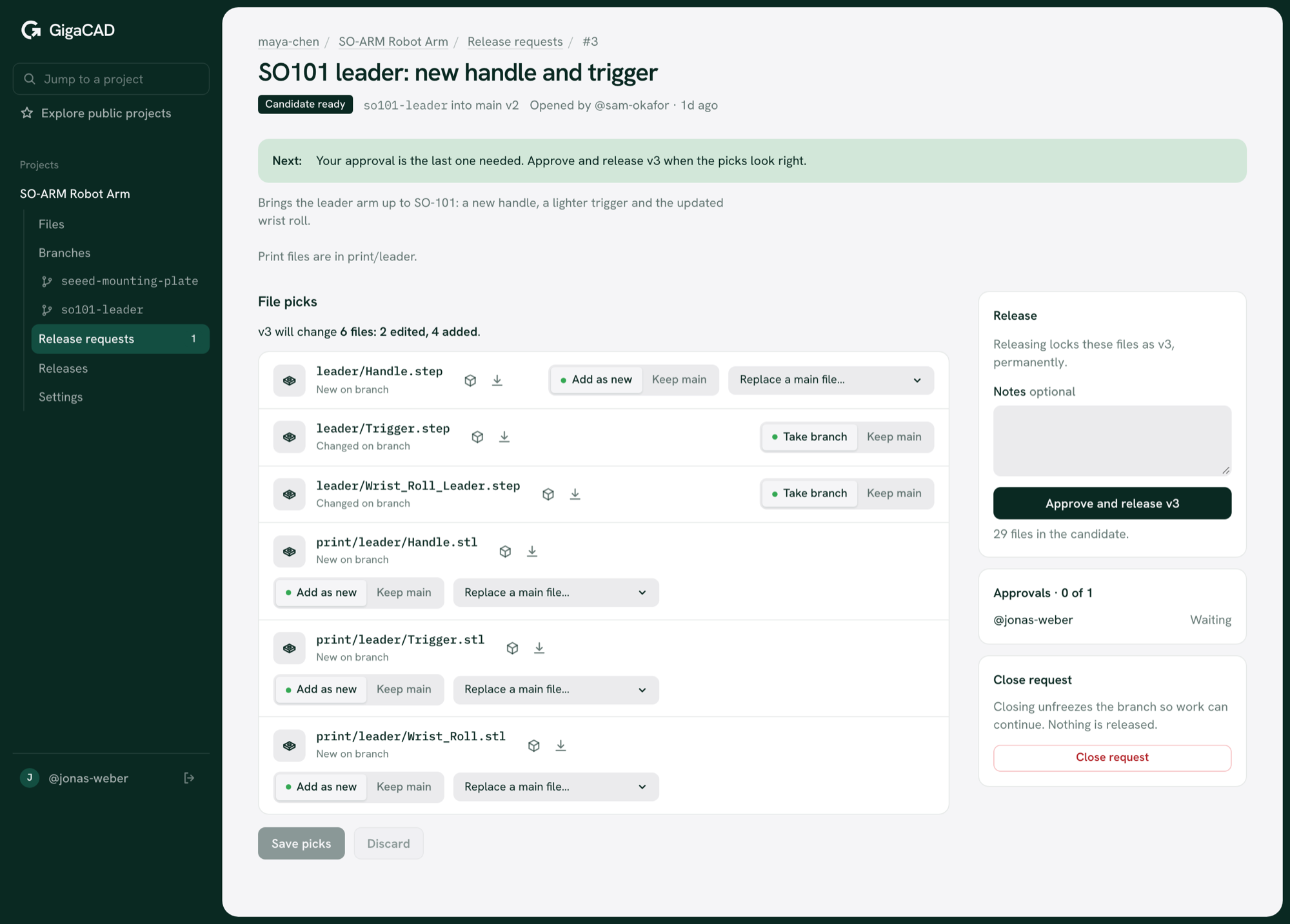
After the last approval, the release locks as the next version, named after the request: v2: SO101: simpler assembly, no gear removal.
Planned: the SolidWorks add-in will rebuild each release before anyone approves it. It will repoint assembly references, rebuild, and attach a report. Projects will be able to require a clean rebuild.
How files move
Files go from your computer straight to storage, not through GigaCAD’s servers. Before uploading, GigaCAD checks which files it already has and sends only the new ones. Each file is stored once, no matter how many branches and releases use it, so saving a new Version of a 20 MB assembly you didn’t touch uploads nothing.
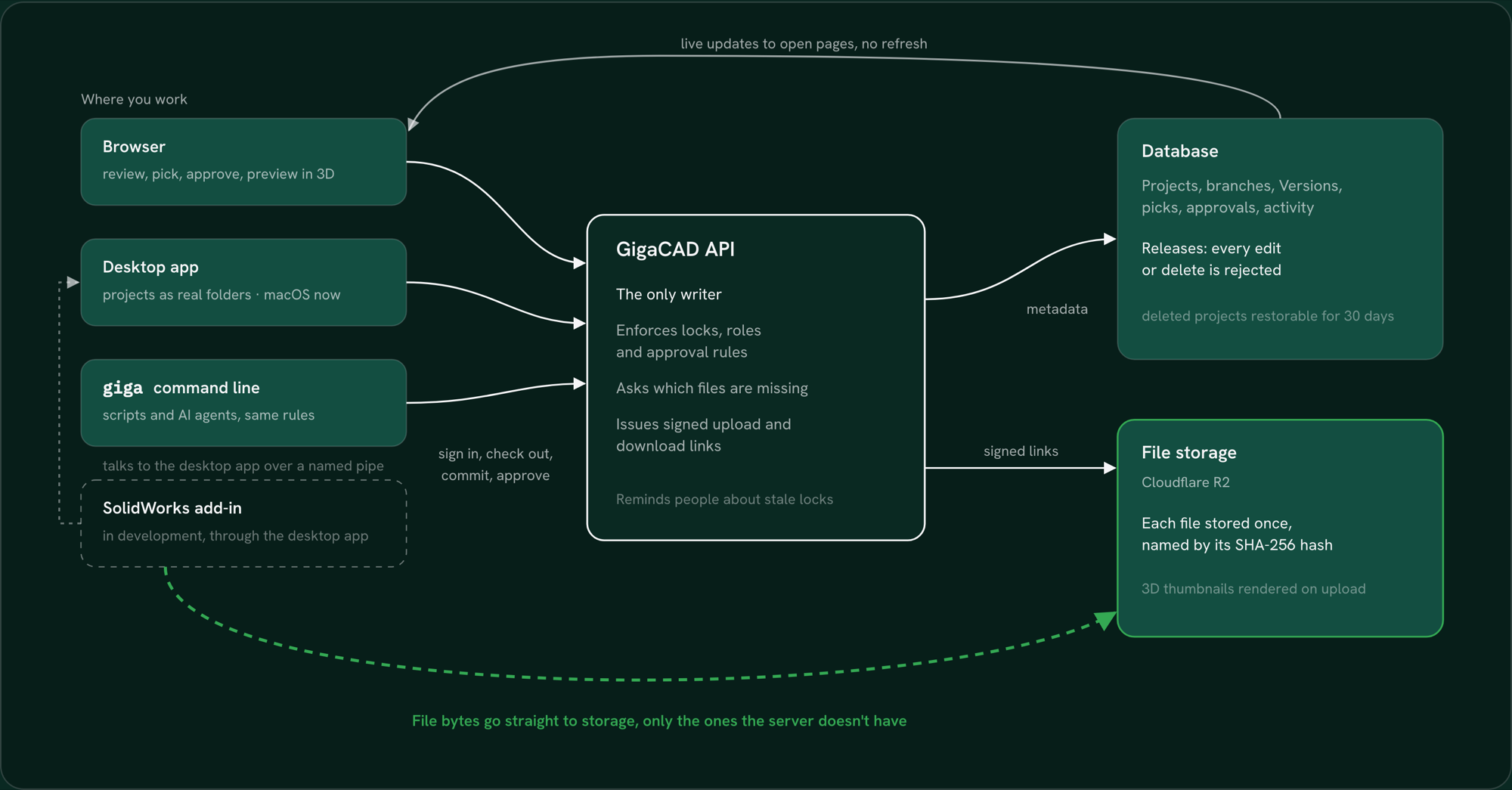
The browser, the desktop app, the giga command line and the SolidWorks add-in all go through the same API, so the same locks, roles and approvals apply everywhere. That includes scripts and AI agents.
Roles
| What they can do | Owner | Maintainer | Contributor | Viewer |
|---|---|---|---|---|
| Browse, preview in 3D and download | Yes | Yes | Yes | Yes |
| Create branches, check out, save Versions | Yes | Yes | Yes | No |
| Open release requests and pick files | Yes | Yes | Yes | No |
| Release someone else’s lock | Yes | Yes | No | No |
| Add and remove members | Anyone | Contributors and viewers | No | No |
| Delete or restore the project | Yes | No | No | No |
Approvers are whoever the project’s rules name. Every plan includes unlimited collaborators.
What’s available and what’s next
Everything above, except the add-in’s rebuilds, works today in the browser, the giga command line, and GigaCAD for macOS. GigaCAD for Windows and the SolidWorks add-in are in progress.
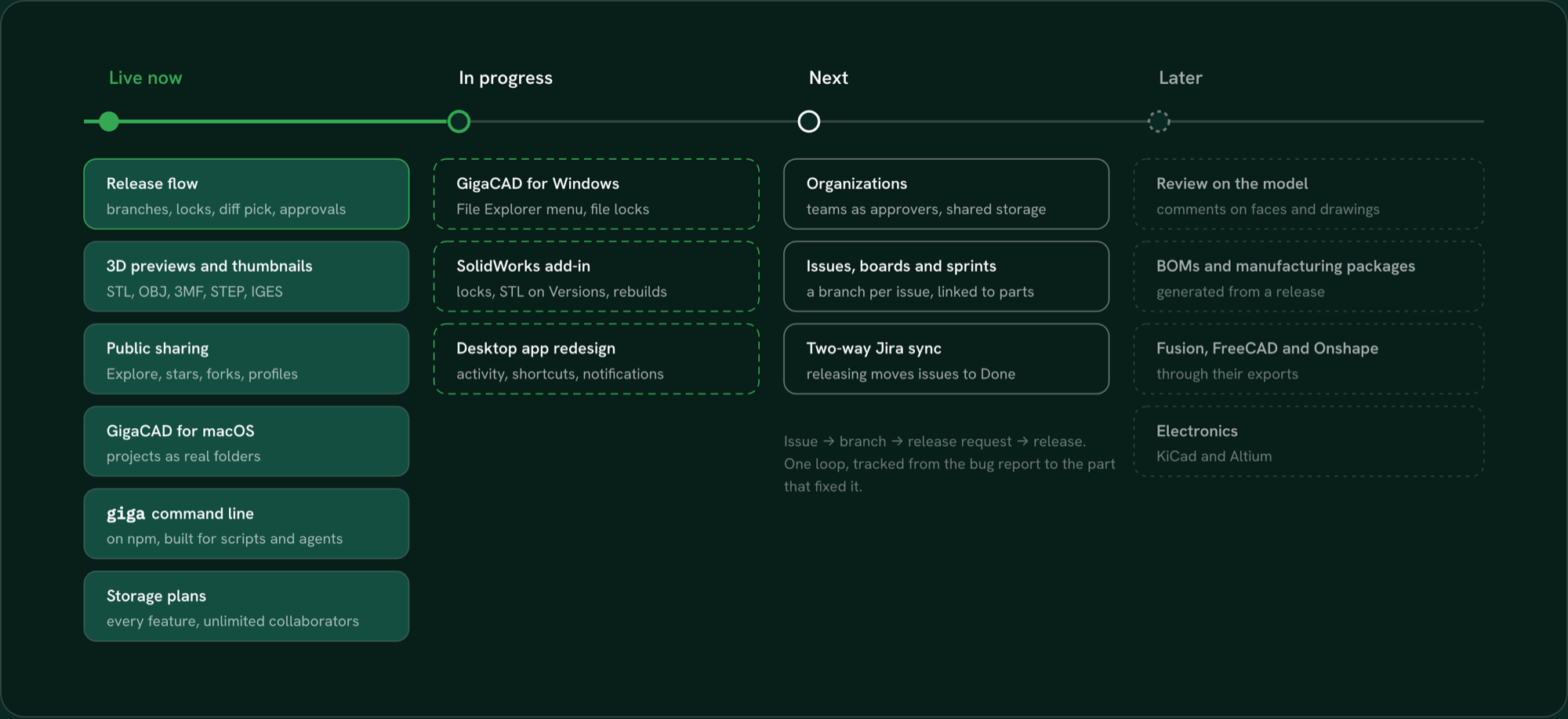
Next are organizations, and issues, boards and sprints built into GigaCAD. Starting an issue will create its branch, issues will link to the parts they change, and a release will close the issues it includes. Teams on Jira will get two-way sync.
Try it
Create a free project at gigacad.site, upload a part, and open it in 3D. The SO-ARM files in this article are from TheRobotStudio/SO-ARM100, under the Apache-2.0 license.